How to configure assessment workflows
When creating an assessment, you configure the following attributes :
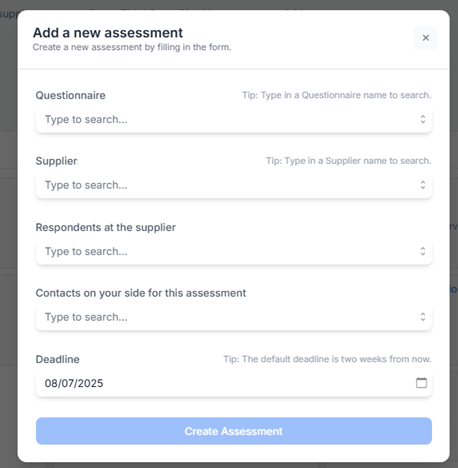
- Questionnaire: select the questionnaire you wish to submit to the supplier.
- Supplier: select the supplier you wish to respond to the assessment. Only one supplier can be selected. The supplier must first be created (and validated by the Ceeyu backoffice) from the Suppliers page of the Ceeyu platform before being visible in the drop-down list.
- Supplier respondents: select the respondents to whom you wish to send the assessment. Multiple respondents can be selected. Supplier contacts must first be added from the supplier page before being visible in the drop-down list.
- Contacts on your side for this assessment: there can be 3 types of contacts on your side who participate in assessments (= they are the only ones to receive email notifications when an assessment changes status)
- Users from your company, added as contacts for the supplier. These users will be notified of status changes to any questionnaire sent to this specific supplier
- Contacts from your company, added as contacts for the supplier. A Contact (unlike a User) has no user account on the Ceeyu platform. He or she will simply receive e-mail notifications, to be informed of status changes, and will not have access to the assessment.
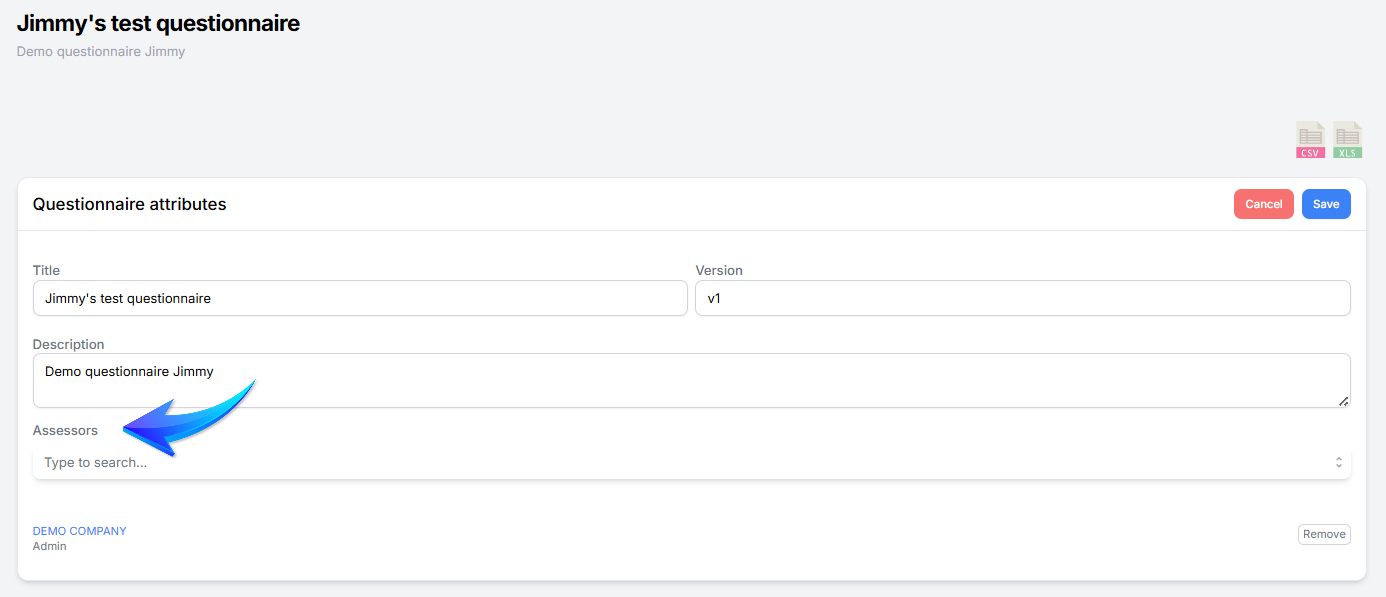
- Questionnaire assessors. These Ceeyu users are informed of changes in the status of all assessments using the questionnaire for which they are configured as assessors, regardless of which suppliers the assessments are sent to. Unlike users (suppliers) and contacts, assessors must be configured from the Questionnaire Library page.
From the moment is has been created, a digital assessment on the Ceeyu platform goes through 4 stages:
- When the assessment is added, it is first created as a Draft. In this status, the supplier is not yet informed of the evaluation, and you can still modify all key configuration parameters such as assessment title, deadline, supplier contacts, etc (Edit button at the top of the assessment page).
- As soon as you click on the Send button, the assessment enters the Sent/Ongoing stage. At this stage, the supplier receives an e-mail informing them that they have been invited to respond to an evaluation of your company. If the supplier does not yet have an account on the Ceeyu platform, he will be invited to create one. Our platform sends 3 automatic reminders in case the supplier hasn't set up an account, after which you can trigger additional reminders yourself from the evaluation page.
- Once the supplier has submitted his answers (note: a supplier cannot submit his answers until he has answered all the questions), the evaluation becomes Under review. Users involved in the assessment within your company will receive an e-mail notification informing them that the assessment is awaiting their review.
- At the end of the review, you have two options:
- If you are not satisfied with the quality of the responses, you can reject the assessment (status = Rejected). In this case, the supplier receives an e-mail notification informing him that some of his responses have not been accepted. The supplier is invited to review and update the rejected responses and resubmit them.
- If you are satisfied with the responses, you can accept the assessment (status = Finished). This triggers automatic scoring of the evaluation. The supplier receives an email notification that you have accepted the assessment.