How to configure rating of a questionnaire
A great feature of the Ceeyu platform is the automated rating of assessments. To implement this, you'd need to configure the rating in the questionnaire.
Rating is configured at two levels:
1/ Weight of the question
You can configure the impact the score of a question has on the total assessment score. As such, the total assessment score is a weighted average of individual question scores.

These are the options:
- Critical = the question has the highest weighting (10) in the calculation of the total assessment score, and if one or more questions are answered in the negative (question score < 50%), the total assessment score is reduced by 50% (meaning that the supplier does not pass the assessment).
- Essential = the question has the highest weighting (10) in the calculation of the total assessment score, and if one or more questions are answered in the negative (question score < 50%), the total assessment score is reduced by 25%.
- Very high = the question has the highest weighting (10) in the calculation of the total assessment score.
- High = the question has a weighting of 8 in the calculation of the total assessment score.
- Medium = the question has a weighting of 5 in the calculation of the total assessment score. This is the default weight, applied if the weight is not configured.
- Low = the question has a weighting of 2 in the calculation of the total assessment score.
- Informational = the question does not count in the calculation of the total assessment score.
2/ Score of answer
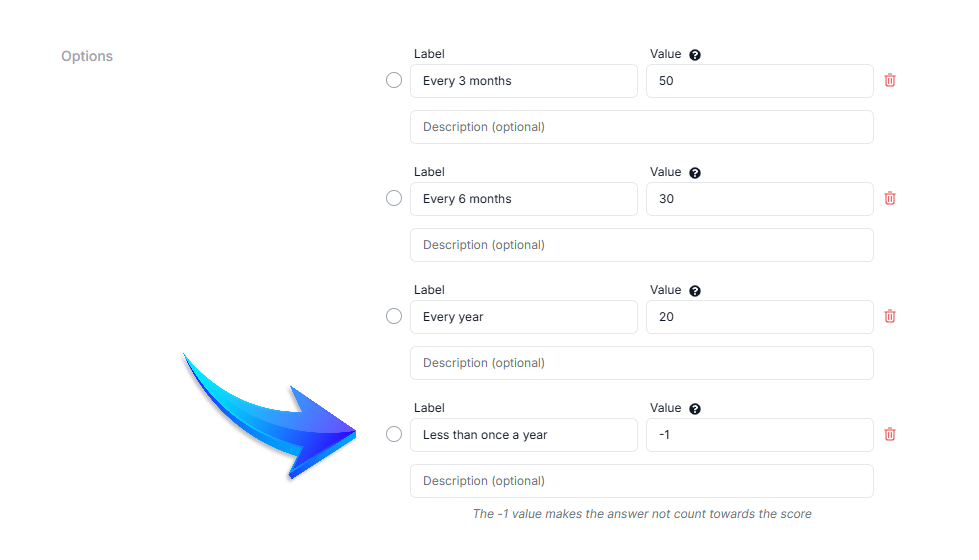
Each question is evaluated according to the score you have set for the answer option in the Value field. Please note the following points:
- The score for an answer option cannot exceed 100 for single-choice questions.
- The sum of answer option scores cannot exceed 100 for multiple-choice questions.
- For open answer questions, you will be asked to rate the answer on a scale from 0 to 100 when accepting it.
- If the selected answer makes the question informative, you can indicate this by putting -1 in the Value field.